
Customers lists every customer your organisation has. The list updates as you type: there is no Find button.
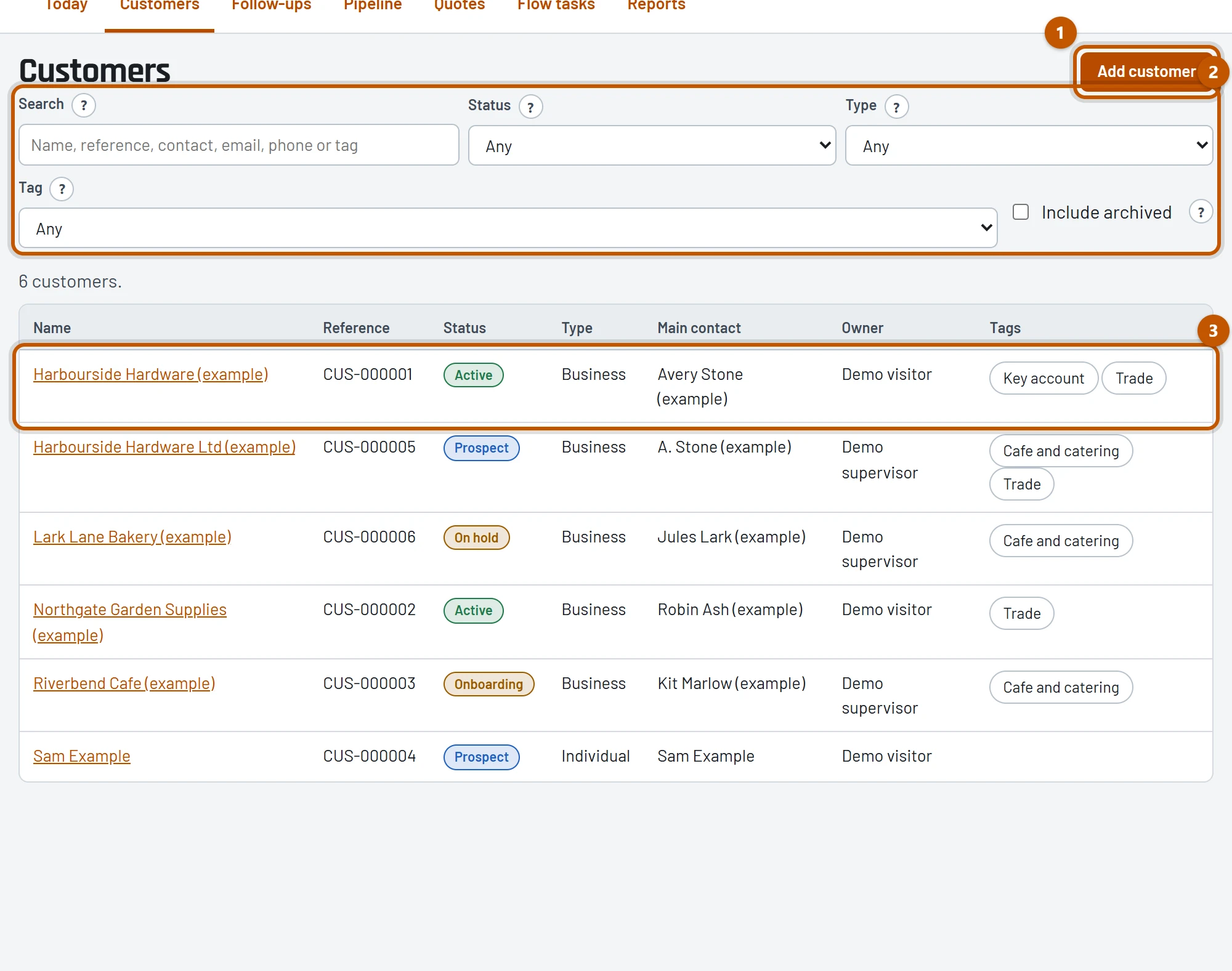
- Add customer: see Add a customer.
- Search and the filters.
- A customer: open it for its page.
Search
- Choose Customers in the menu.
- Type in Search. It looks in names, legal names, references (such as CUS-000001), contact names, email addresses, phone numbers and tags.
- The count under the filters says how many match. If it says more match than are shown, type more of the name.
Filter
Narrow the list with the filters beside the search. Each applies as soon as you change it.
- Status: Prospect, Onboarding, Active, On hold or Inactive.
- Type: Business or Individual.
- Tag: one of your organisation's tags.
- Include archived: archived customers are left out unless you tick this.
The address bar keeps your search and filters, so Back, or a link you share with a colleague, returns to the same list.
Open a customer
Select anywhere on a customer's row to open it. The list shows each customer's Name, Reference, Status, Type, Main contact, Owner and Tags.
Elsewhere
- Core's Unified Search also finds customers and business contacts by name, opportunities by title and quotes by reference. It never shows a contact's email or phone.
- When you start a quote, a follow-up or an opportunity from its own screen, type two or more letters of the customer's name and choose it from the list.
Was this helpful?