
Supervisors and Rota Administrators plan the rota.
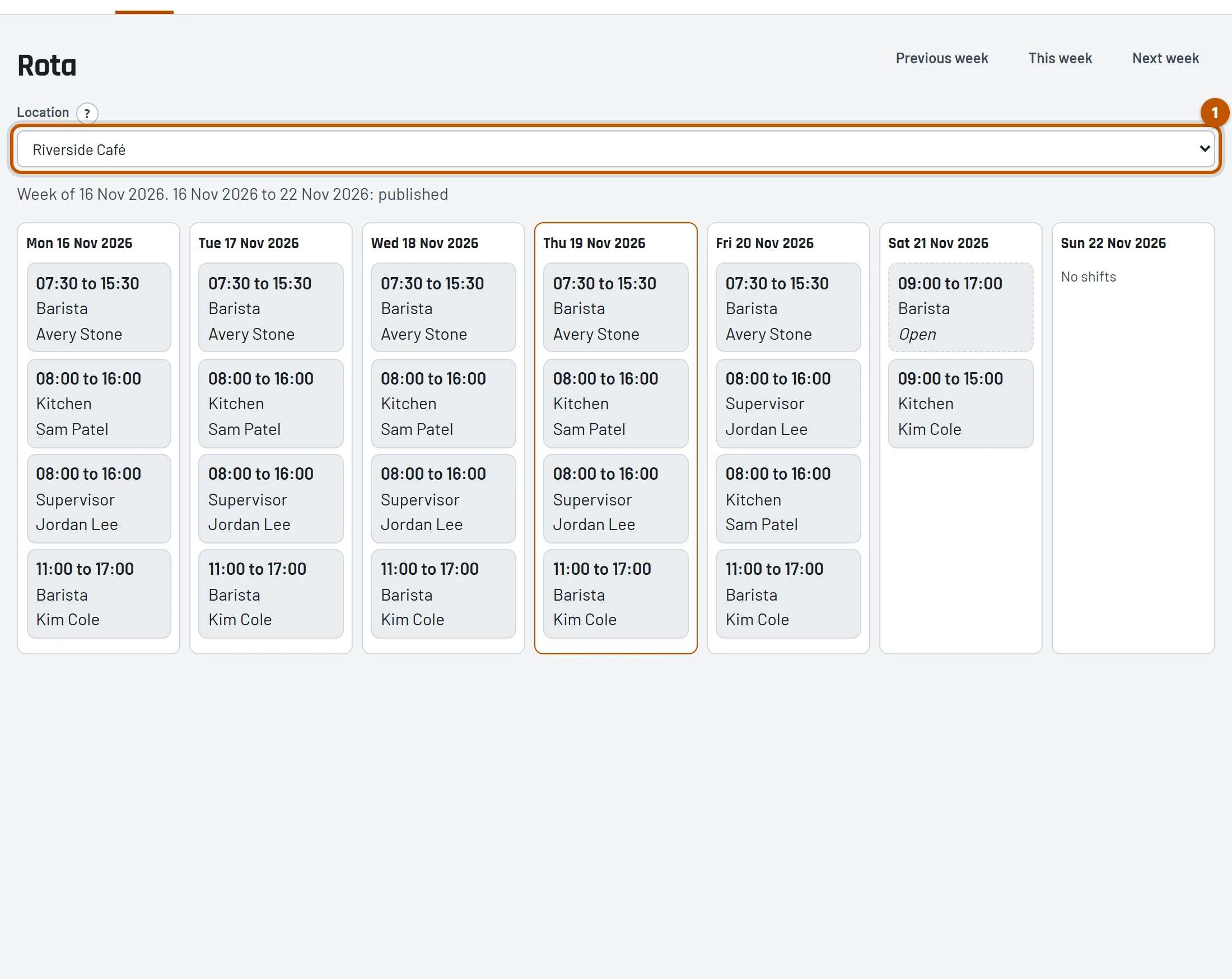
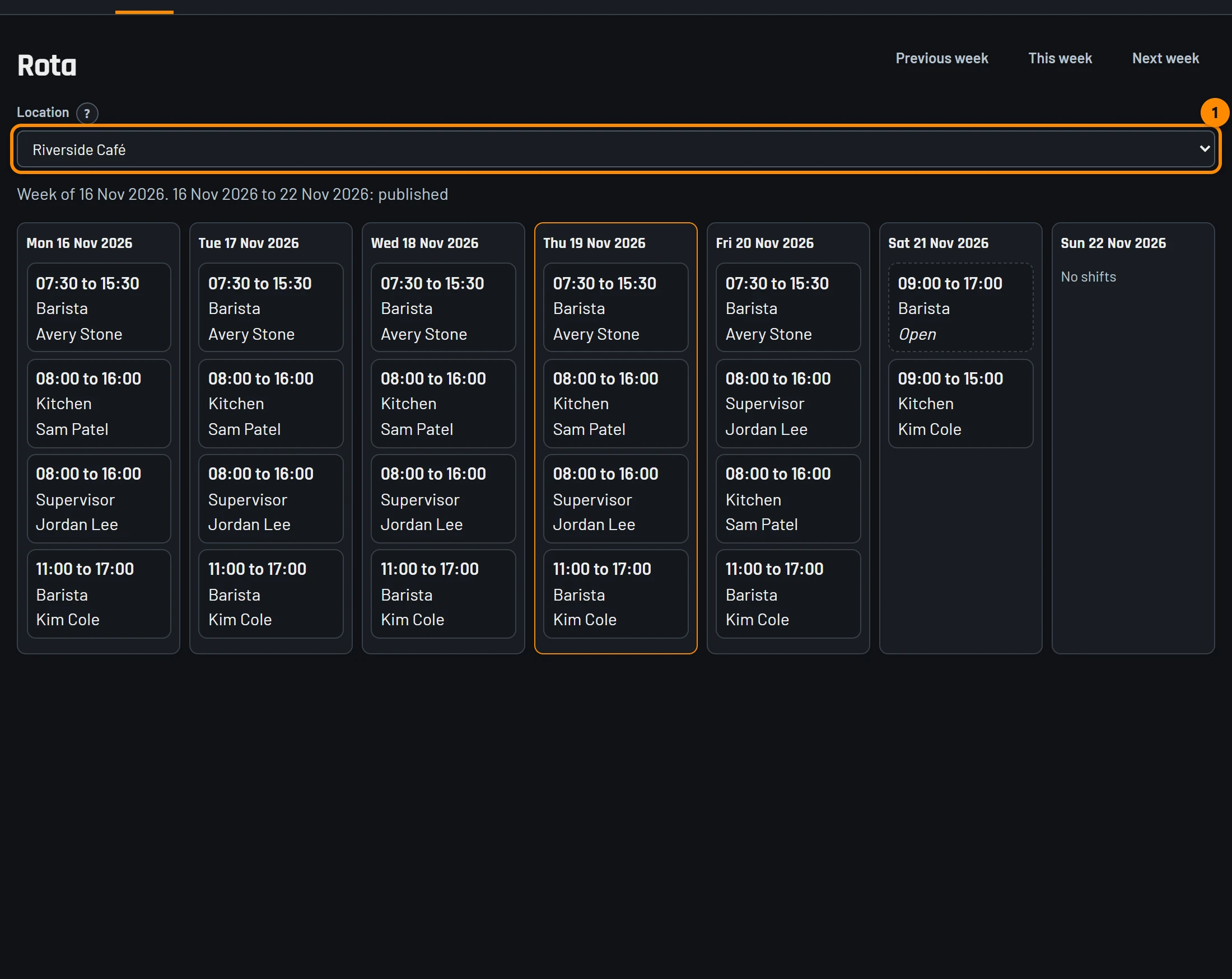
- Location. Below, each day of the week with its shifts: the time, the role and who works it, or Open.
To add a shift:
- Choose Rota, then the Location. Previous week, This week and Next week move through the weeks.
- Under Add a shift, set when it Starts and Ends, the Unpaid break, the Role, and Who: a person, or Nobody: an open shift.
- Choose Save the shift.
A week needs a period before its shifts can be published: see Start and publish a period.
Change or cancel a shift
Select a shift on the rota to open it. Change it and choose Save the shift, use Add a new shift instead to keep the original and add another, or Cancel this shift. If the shift is already published, the person is told.
Working time rules
Your organisation's rules (rest between shifts, breaks, the most hours a week) are checked as you plan. Depending on the settings, a shift that breaks them is refused, or you can go ahead by giving a reason and choosing Save the shift with this reason.
Was this helpful?