
People with Billing access choose Billing. Approved time not yet billed shows, for each client, how much approved time waits and over which dates.
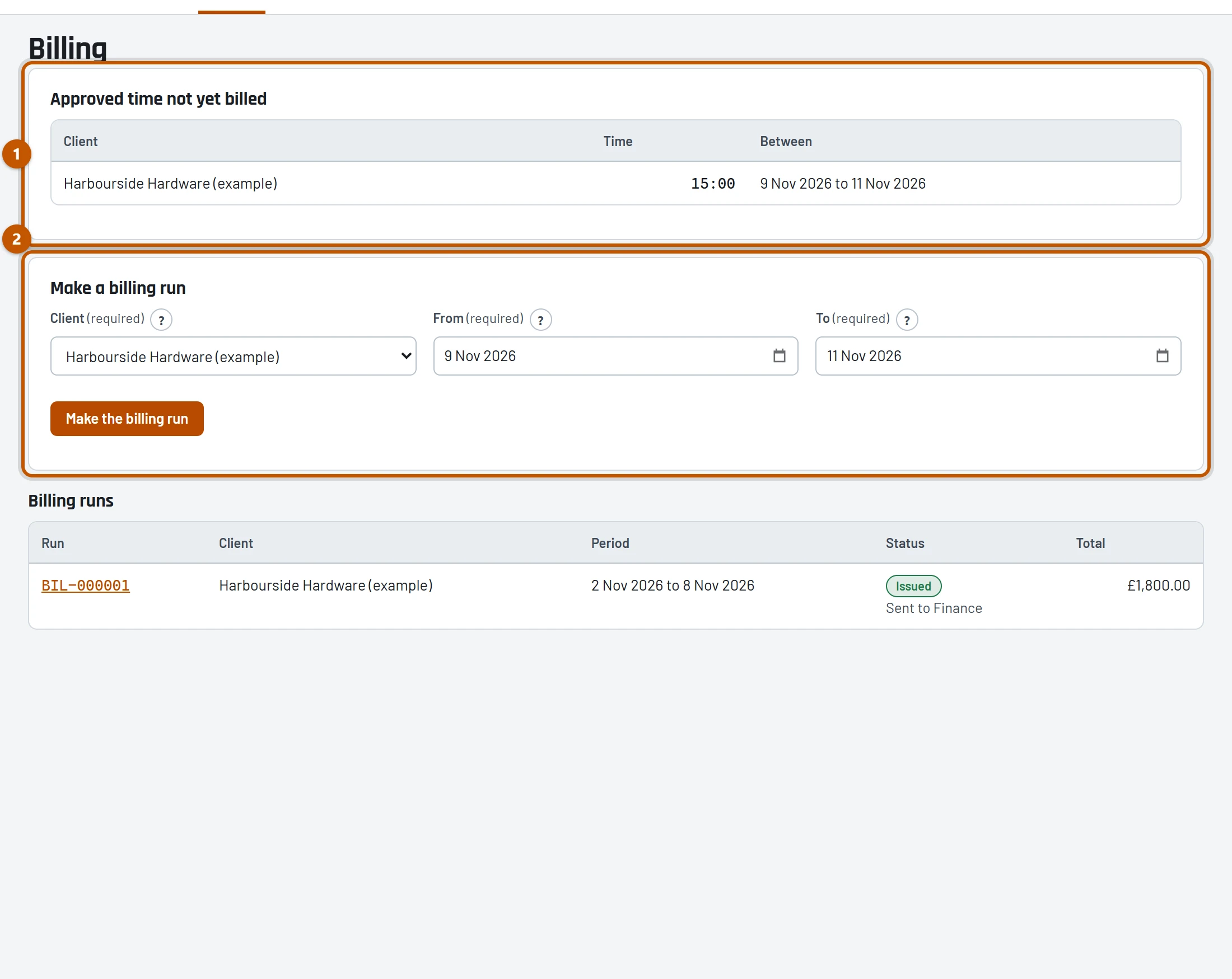
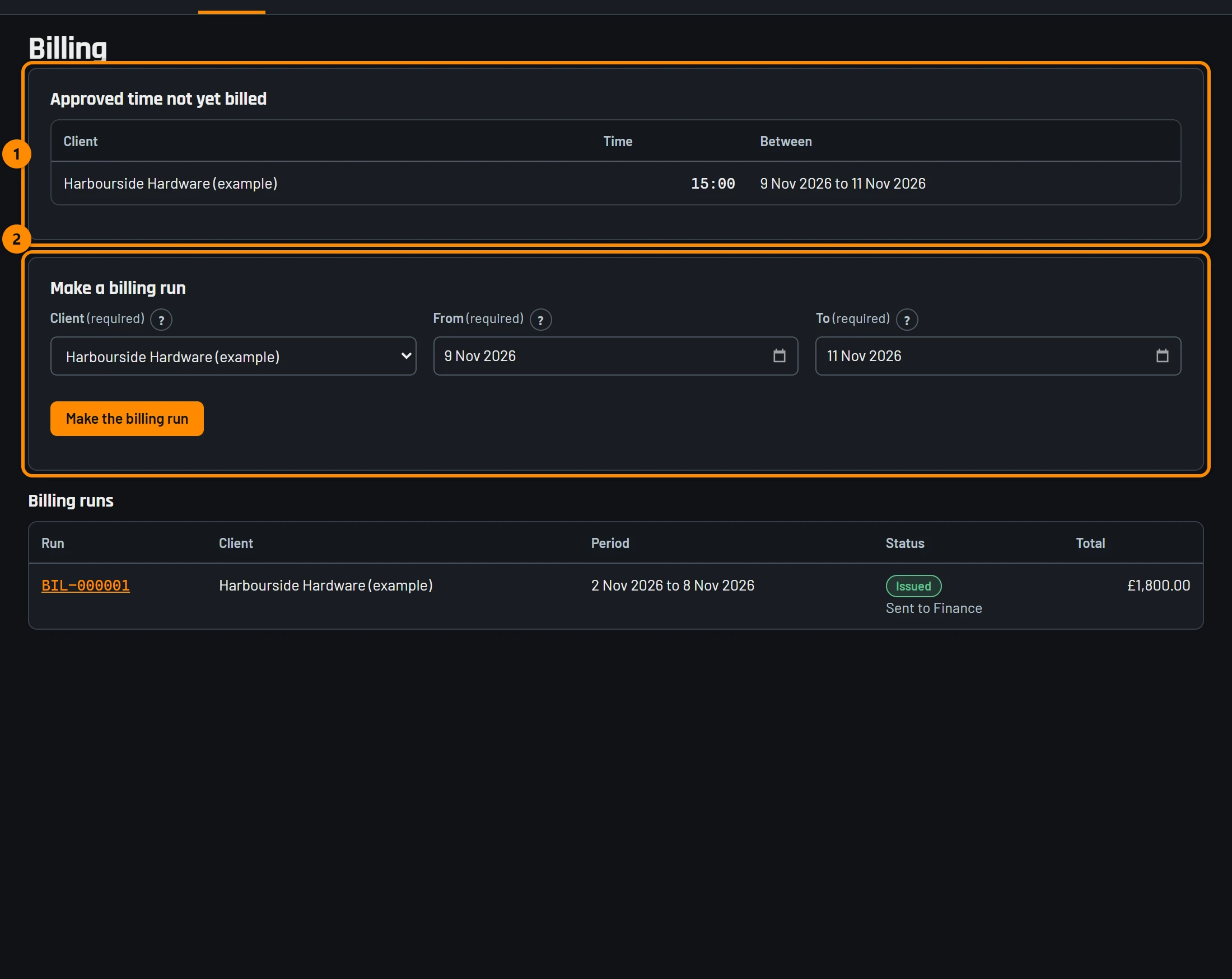
- Approved time not yet billed, for each client.
- Make a billing run: the client and dates, then Make the billing run. Billing runs are below.
Make a run
- Under Make a billing run, choose the Client, and the dates From and To.
- Choose Make the billing run. It lists each project and task with its hours, rate and amount, and the total.
- Check it, then choose Issue the run.
An issued run goes to Finance as a draft sales invoice, for a client that is one of Customers' customers. Without Finance, Download the CSV for your accounts.
To stop a draft run, write Or cancel it, saying why, and choose Cancel the run: its time can be billed again.
Was this helpful?