
When none of the ready-made reports answers your question, build your own. You finish a sentence, one choice at a time, and Core home answers it from the applications you can open. Nothing to set up, and nothing you are not allowed to see.
Open Reports in Core home, then Build.
Finish the sentence
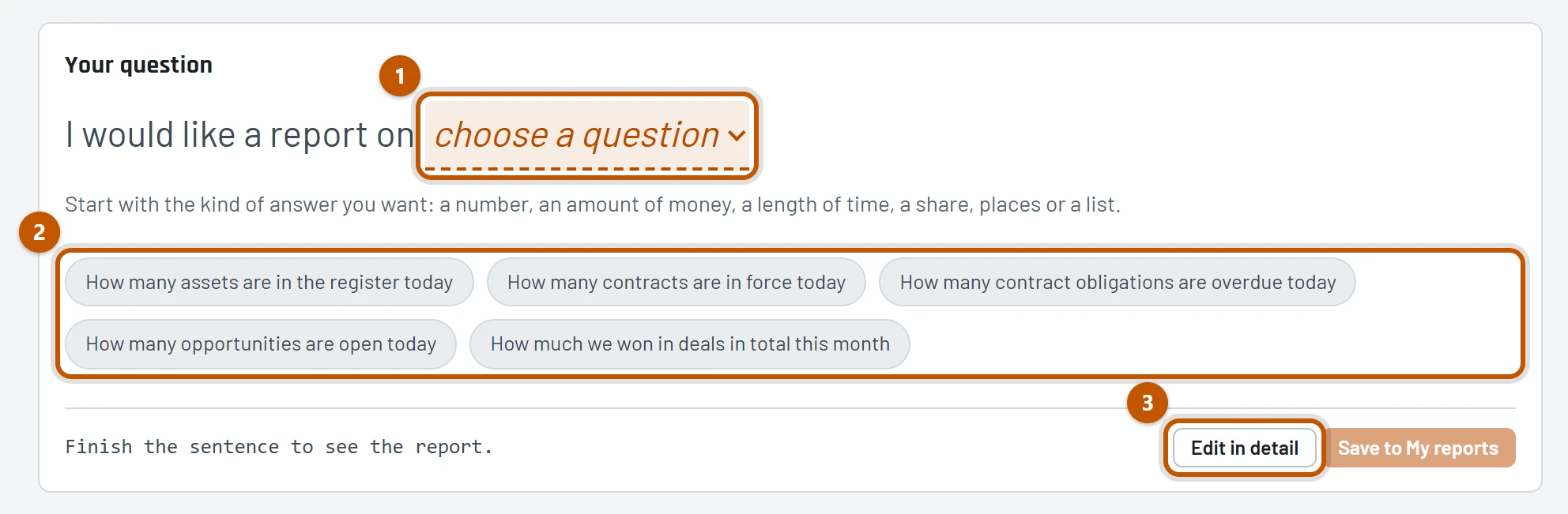
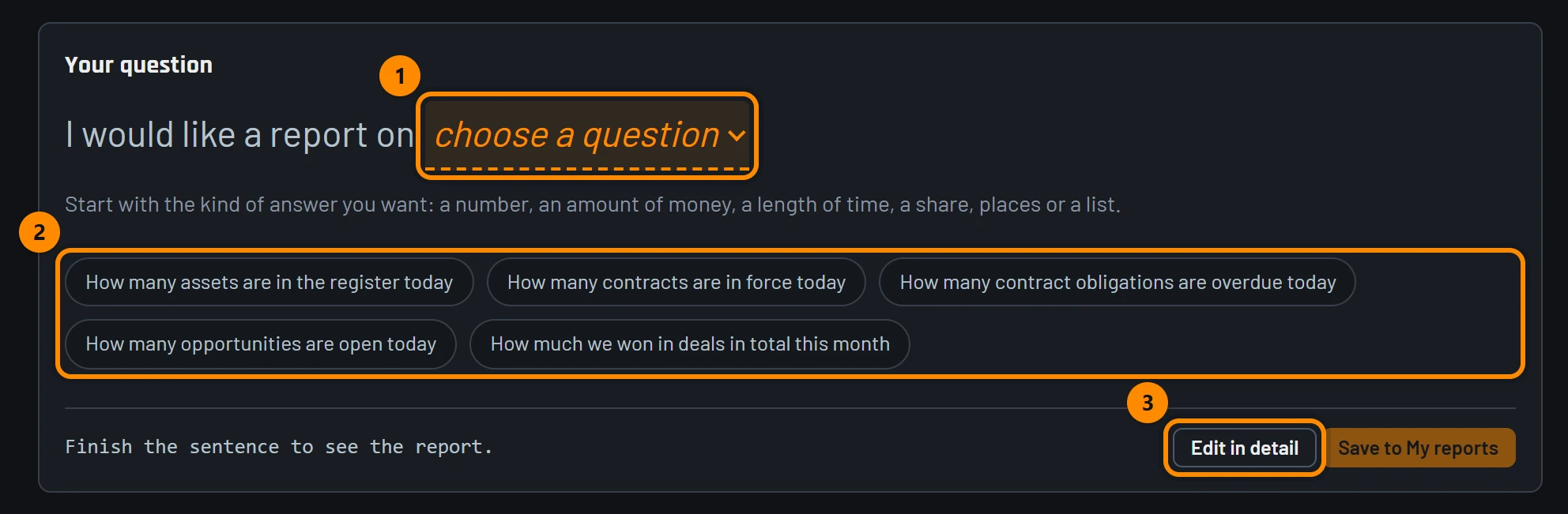
- Choose a question. Start with the kind of answer you want: how many, how much (money), how long, what share of, where or which (a list).
- Or start from a suggestion. Each one fills in the whole sentence; change any part of it afterwards.
- Edit in detail shows the same choices as plain fields, with a few more (see Edit in detail).
Each choice offers only what makes sense after the one before it. Choose how many, and the next choice lists only things that can be counted: people, contracts, purchase orders and so on, from the applications you have. Then choose which of them, when, and how to split it.
Your report
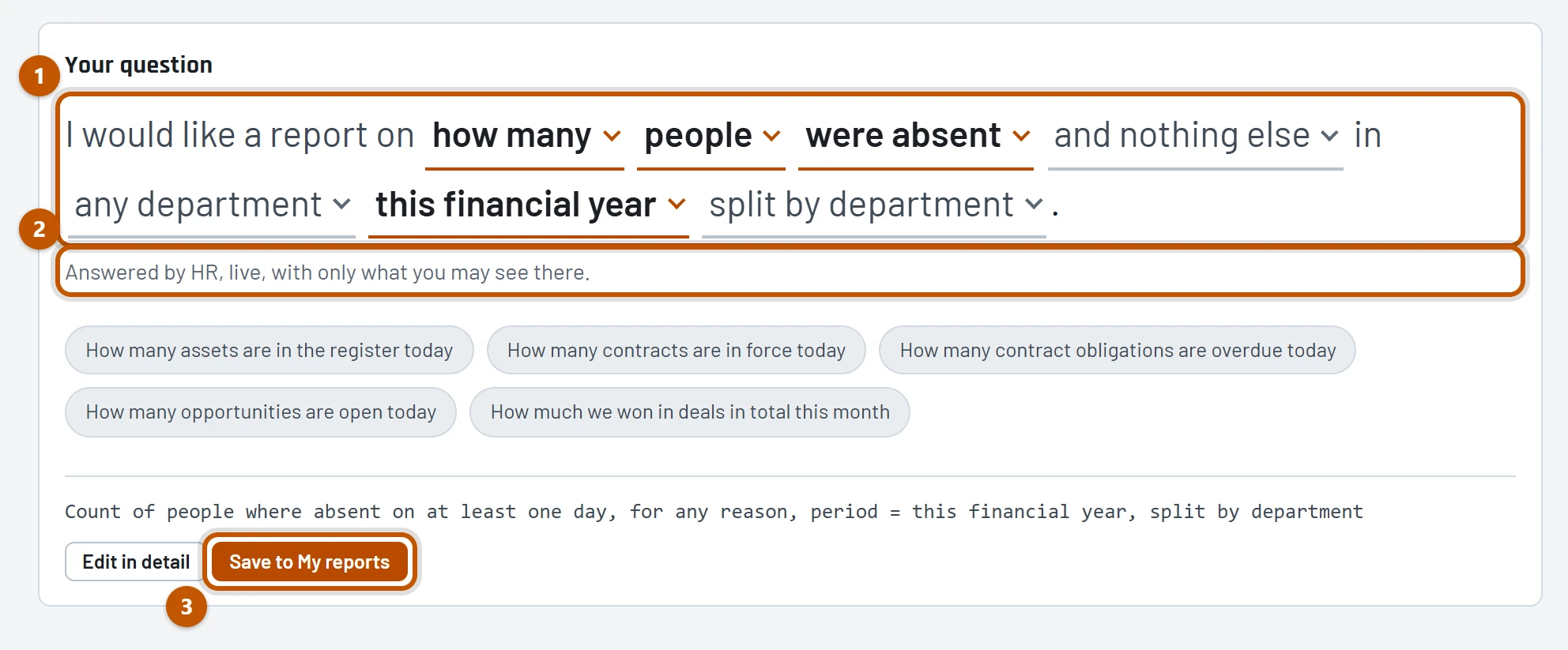
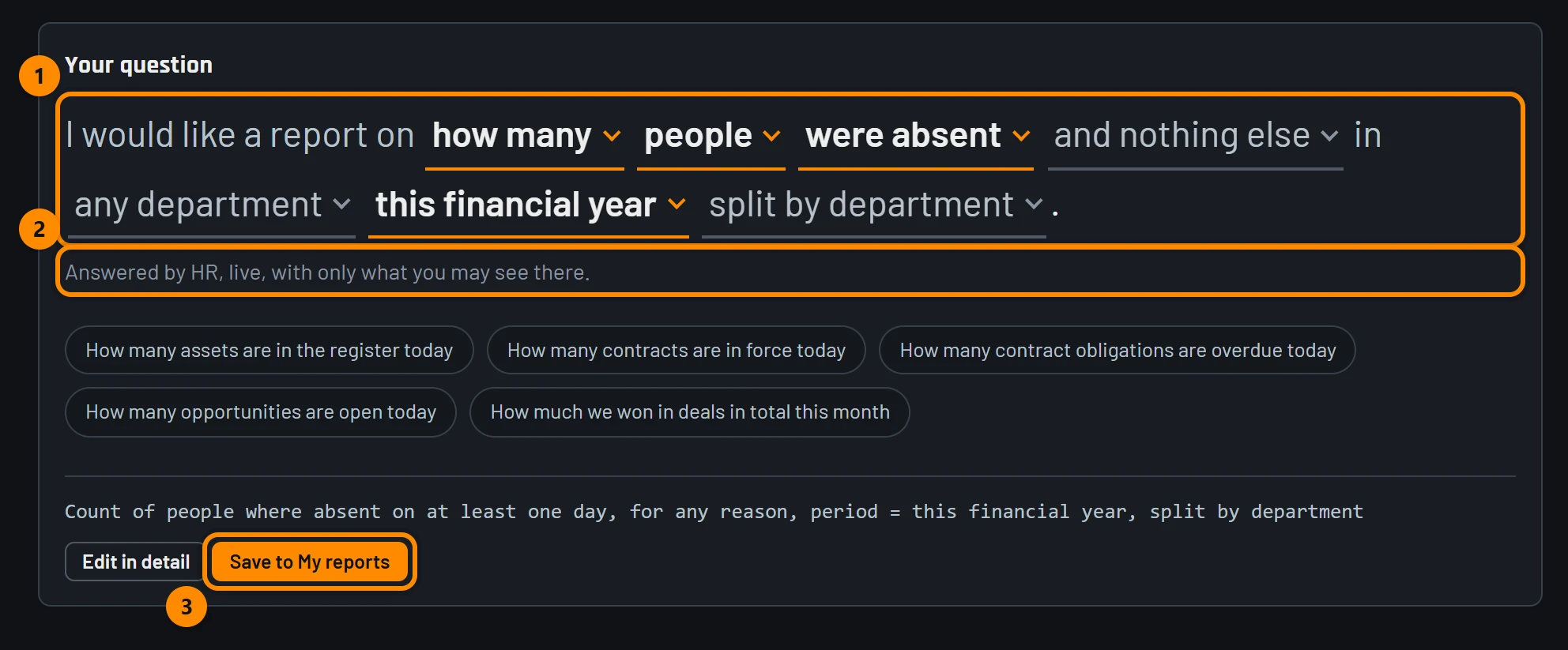
- The sentence reads as your question: I would like a report on how many people were absent this financial year, split by department. Change any part and the report below changes with it.
- Who answers it. Usually the application that holds the records, live, with only what you may see there. A question that joins two applications (and also…) is answered from the reporting store, which is brought up to date every five minutes.
- Save to My reports keeps the question, so you can open it again with today's figures. From My reports you can share it with colleagues.
What you get
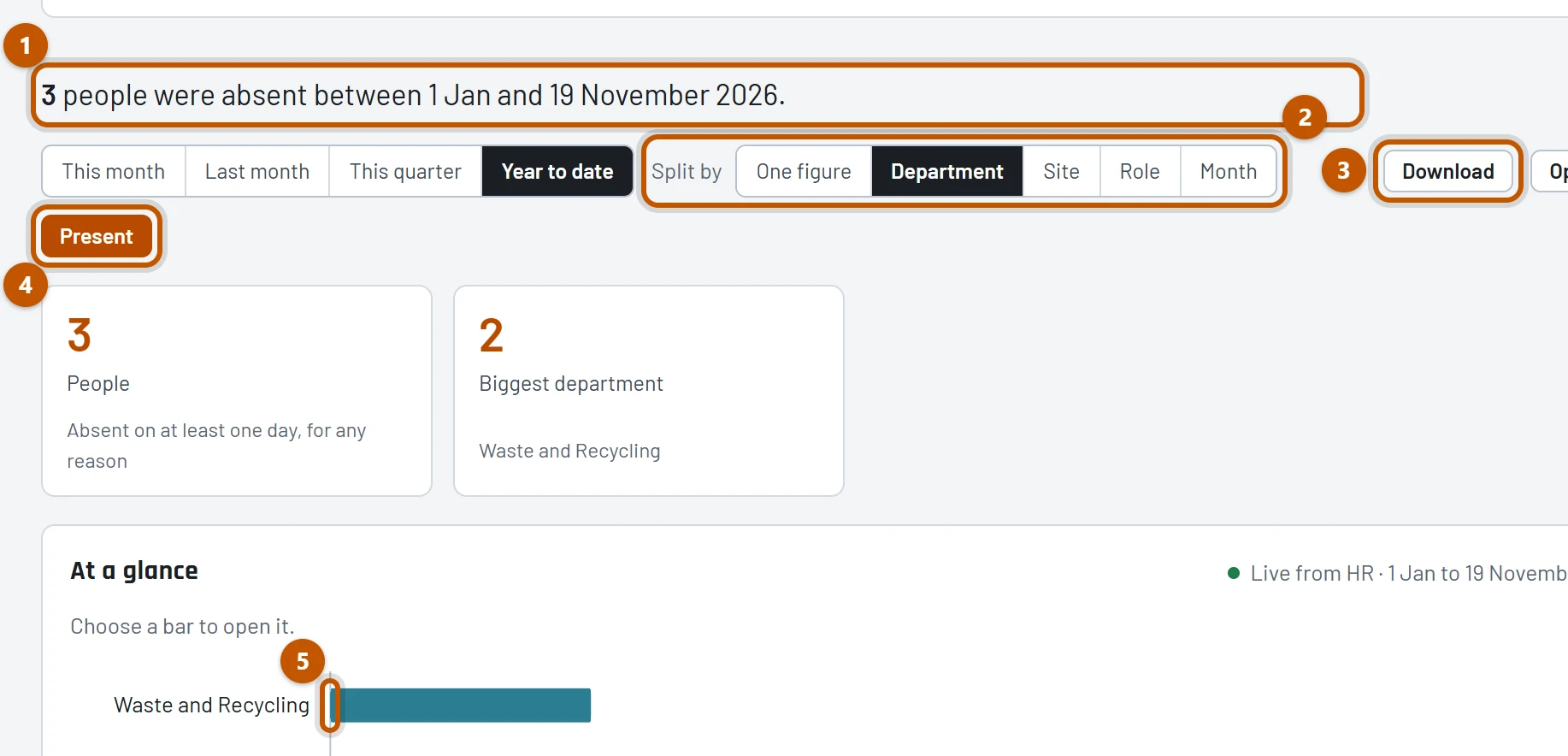
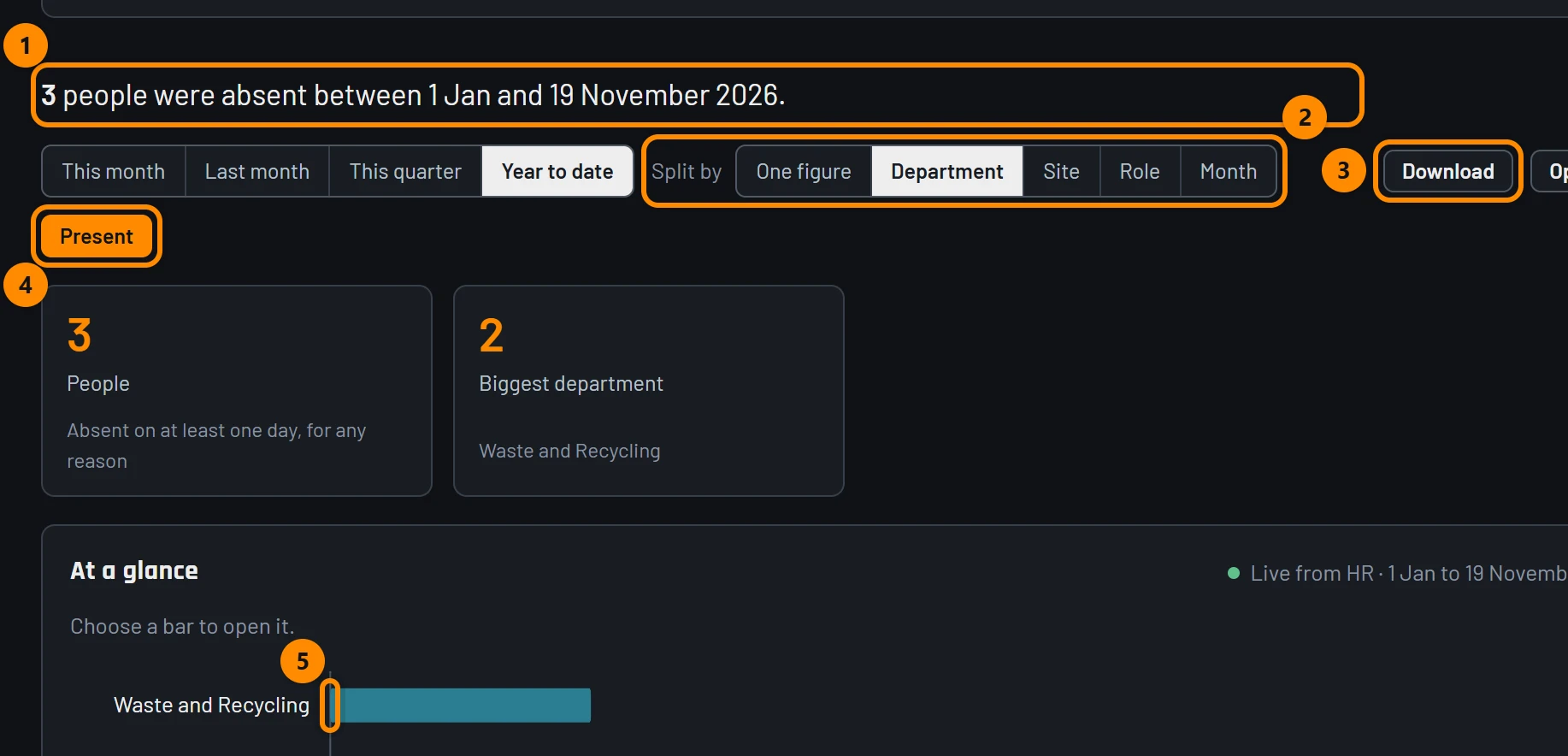
- The headline says the answer in words.
- Split by divides it another way without changing the sentence. The period buttons beside it do the same for dates.
- Download gives you the report as an Excel workbook (the table, ready to sort and filter), a PDF (figures, chart and table, with your logo) or a CSV file (plain rows for another system).
- Present shows the report full screen, for a meeting.
- Choose a bar to open the records behind it, where your access allows.
Edit in detail
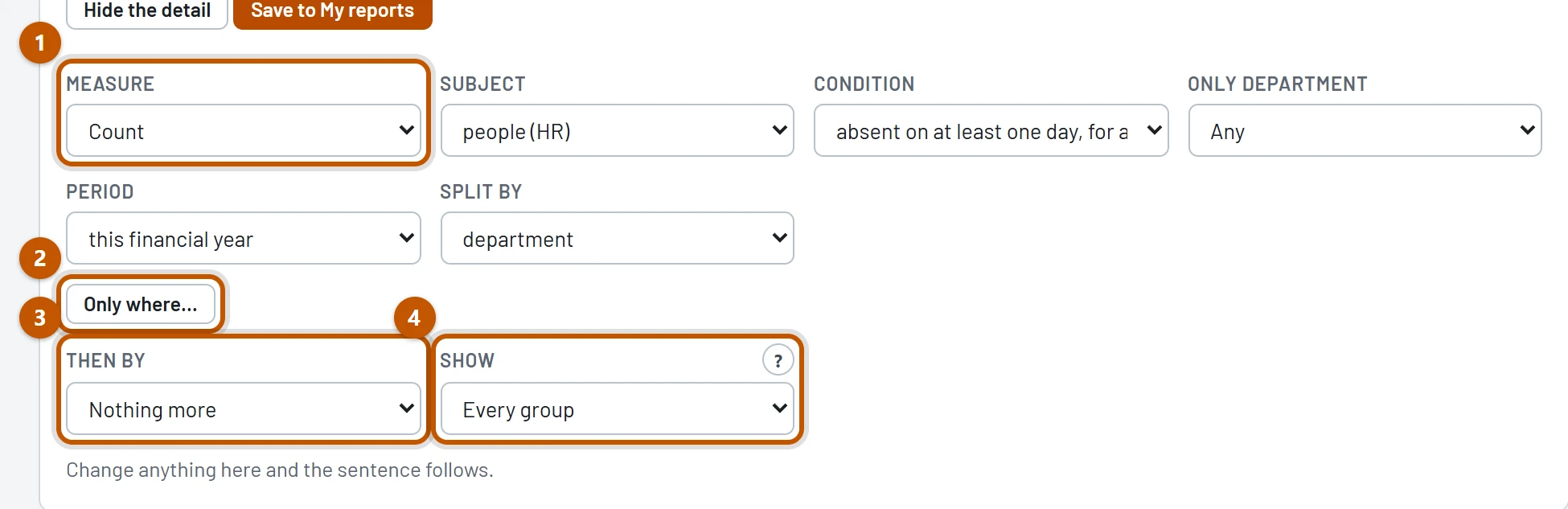
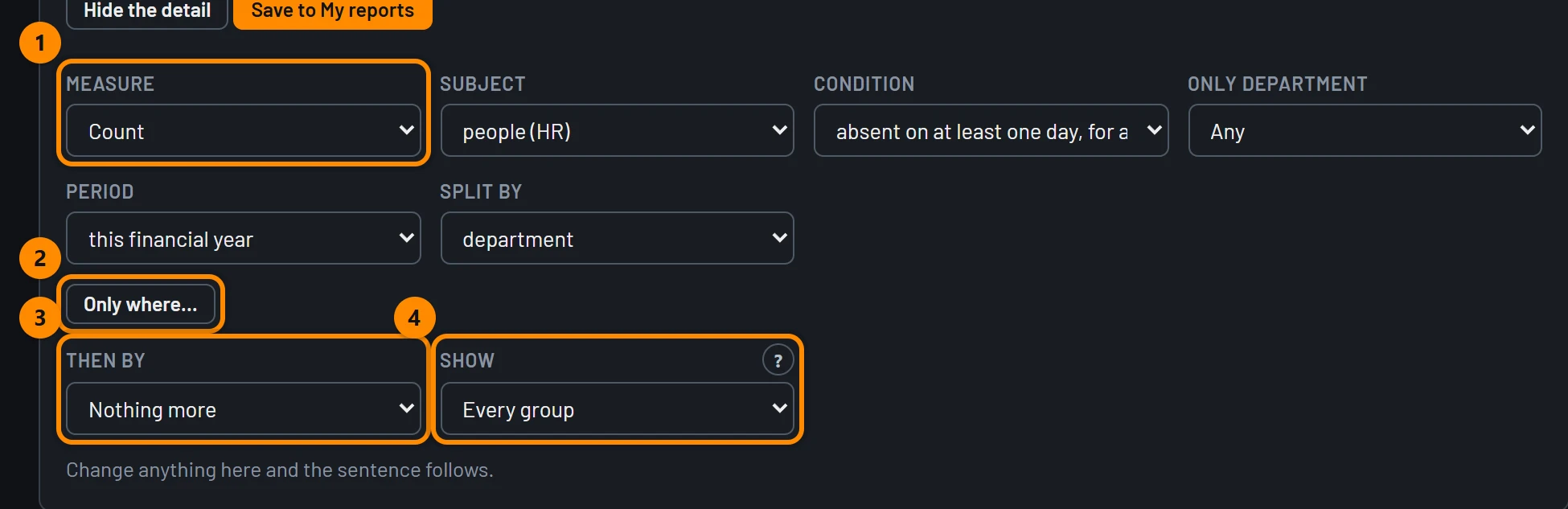
Edit in detail shows the sentence as fields. Change anything here and the sentence follows. It also adds:
- The same choices as fields: measure, subject, condition, period and split.
- Only where… narrows the report to, say, one site and one role. Add up to five filters.
- Then by splits each group again: departments, then the roles in each.
- Show keeps only the biggest groups (the top 5, 10, 20, 50 or 100). The total still counts them all.
Good to know
- You only see what you may see. A report never shows more than the application would show you. If you can open only your own team in HR, the report counts only your team.
- Small groups are hidden when fewer than five people would be shown, unless your access already lets you see those people (an HR administrator, for example). The total still counts them.
- Not there? Choose something else… in the second choice and say what you would like to know. It reaches the ProjectMangoTech team, and once it is described it becomes a choice here.
- In the sandbox the figures are made up, and the reporting store counts everyone in the demonstration organisation, so joined questions may show more people than HR does on its own.
Was this helpful?