
A quote prices what a customer wants from Products' catalogue. It reserves no stock and tells Products nothing until the customer accepts it.
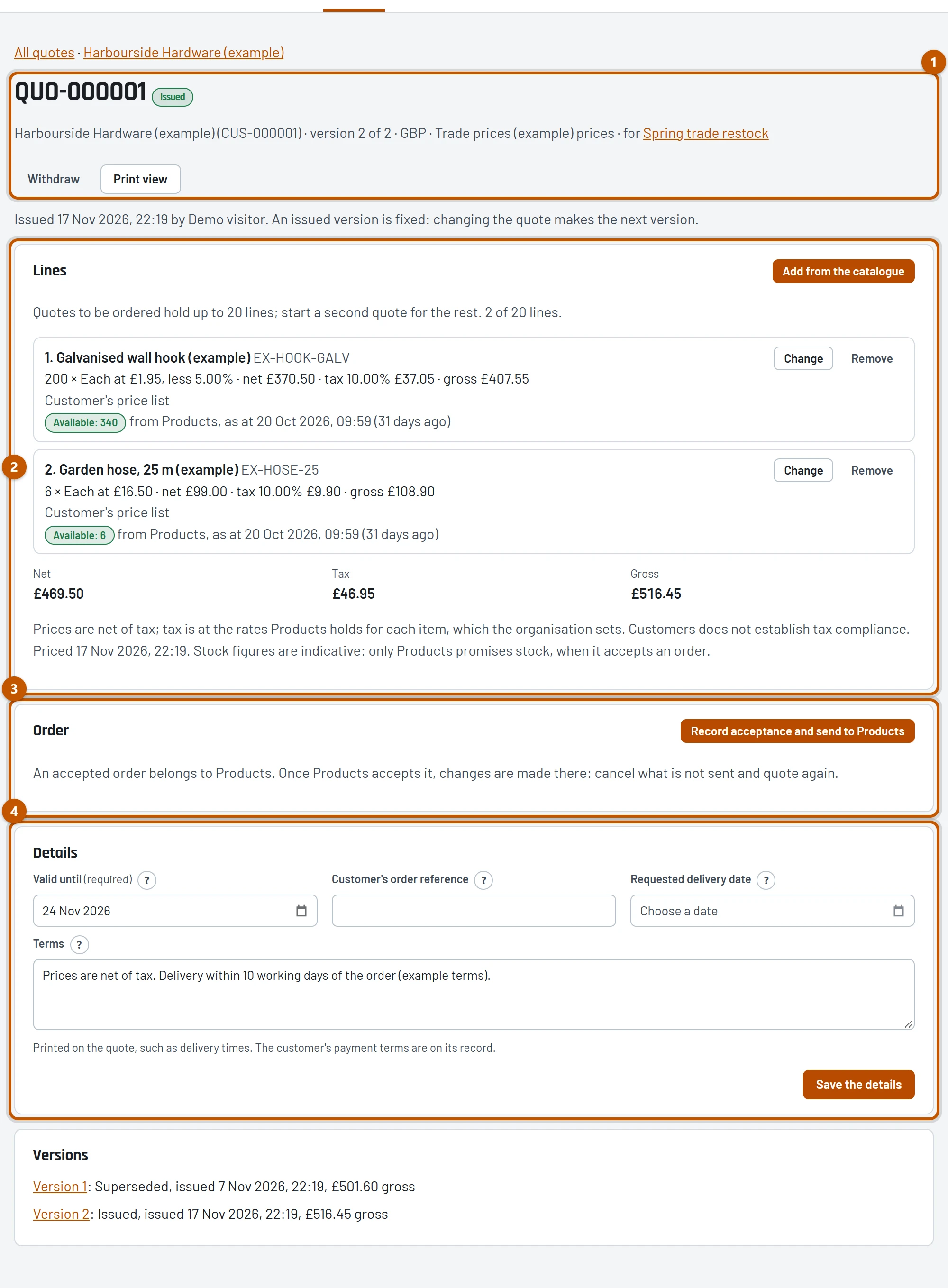
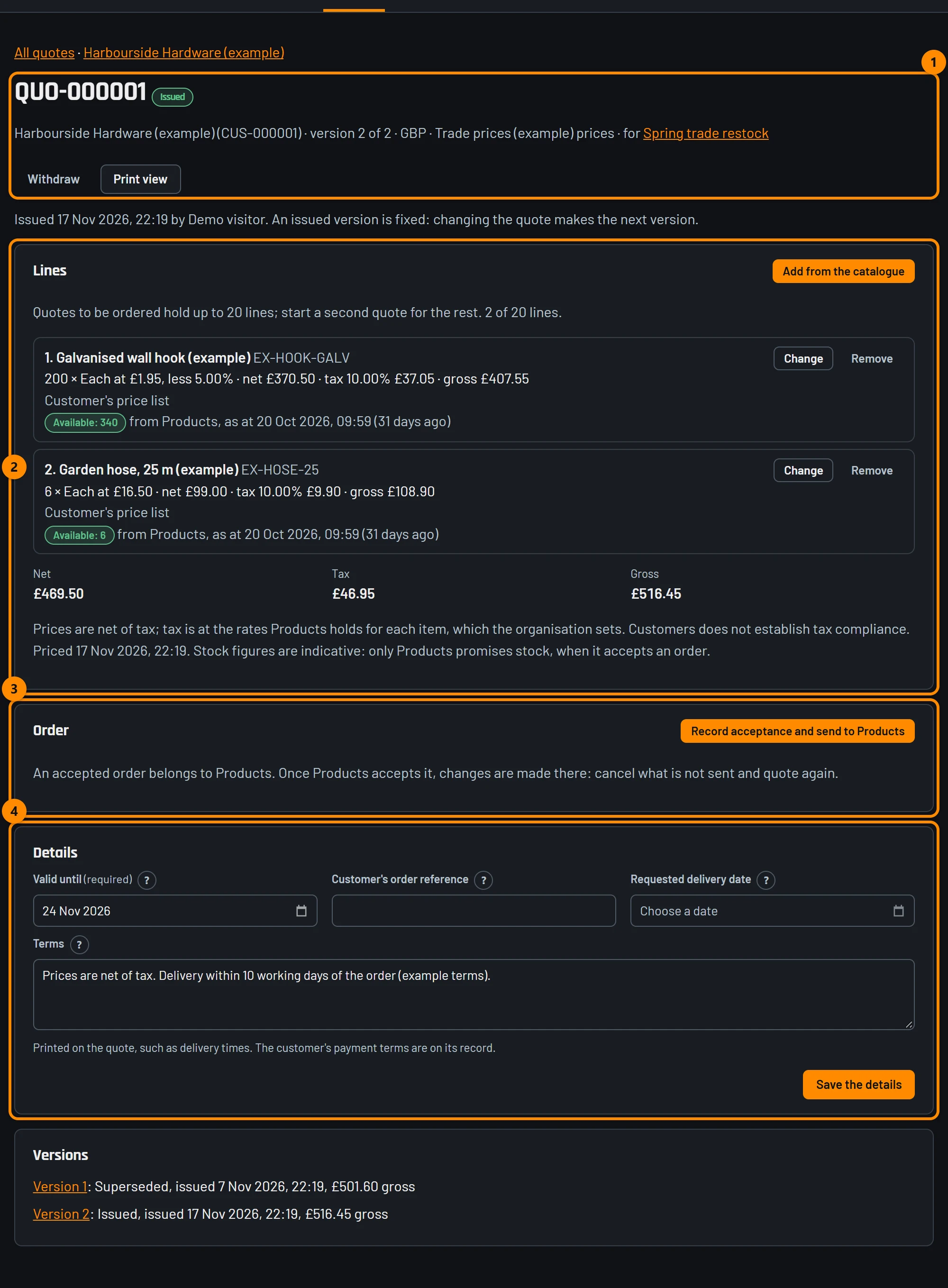
- The quote: its reference, status, customer, version, currency and price list, with Withdraw and Print view.
- Lines: each item, its price and where the price came from, and the stock Products says is available. Add from the catalogue adds more.
- Order: Record acceptance and send to Products, once the customer says yes.
- Details: Valid until, the customer's order reference, the requested delivery date and the Terms printed on the quote.
Start one
- Choose Start a quote on the customer's page, or on Quotes (then find the customer).
- Choose Start the quote. Version 1 opens as a draft with a reference such as QUO-000008.
Add lines
- Choose Add from the catalogue.
- Type in Search the catalogue: a SKU, a name or a category. Each item shows its price for this customer, its tax rate and its stock.
- Choose Choose on the item.
- Choose the Unit, such as Box of 12, and fill in the Quantity and any Discount (percent).
- To quote another price, fill in Type a price instead (optional) and Why that price (at most 60 characters).
- Choose Add line.
Each line shows its unit price, discount, net, tax and gross, and where the price came from: List price, Customer's price list or Typed by the seller. The totals show Net, Tax and Gross, with Tax exempt beside the tax for an exempt customer.
Stock shows as a band from Products, as at a time: Available, Low, None available or Not tracked. It is a guide, never a promise: only Products promises stock, when it accepts the order.
The details
Under Details, set Valid until, the Customer's order reference, the Requested delivery date and any Terms printed on the quote, then choose Save the details.
Issue it
Choose Issue. The version is fixed: nobody can change it. If a line needs approval the button says Send for approval instead: see Quotes that need approval.
Changing an issued quote makes the next version, a draft. The issued version stays the one the customer can accept until the new one is issued.
Print it
Print view shows the quote with your organisation's details, as Core home holds them. Choose Print or save as PDF. A draft is marked as not issued.
If the customer says no
Choose Withdraw. The quote stays on record but can no longer be issued or accepted.