
Find a product
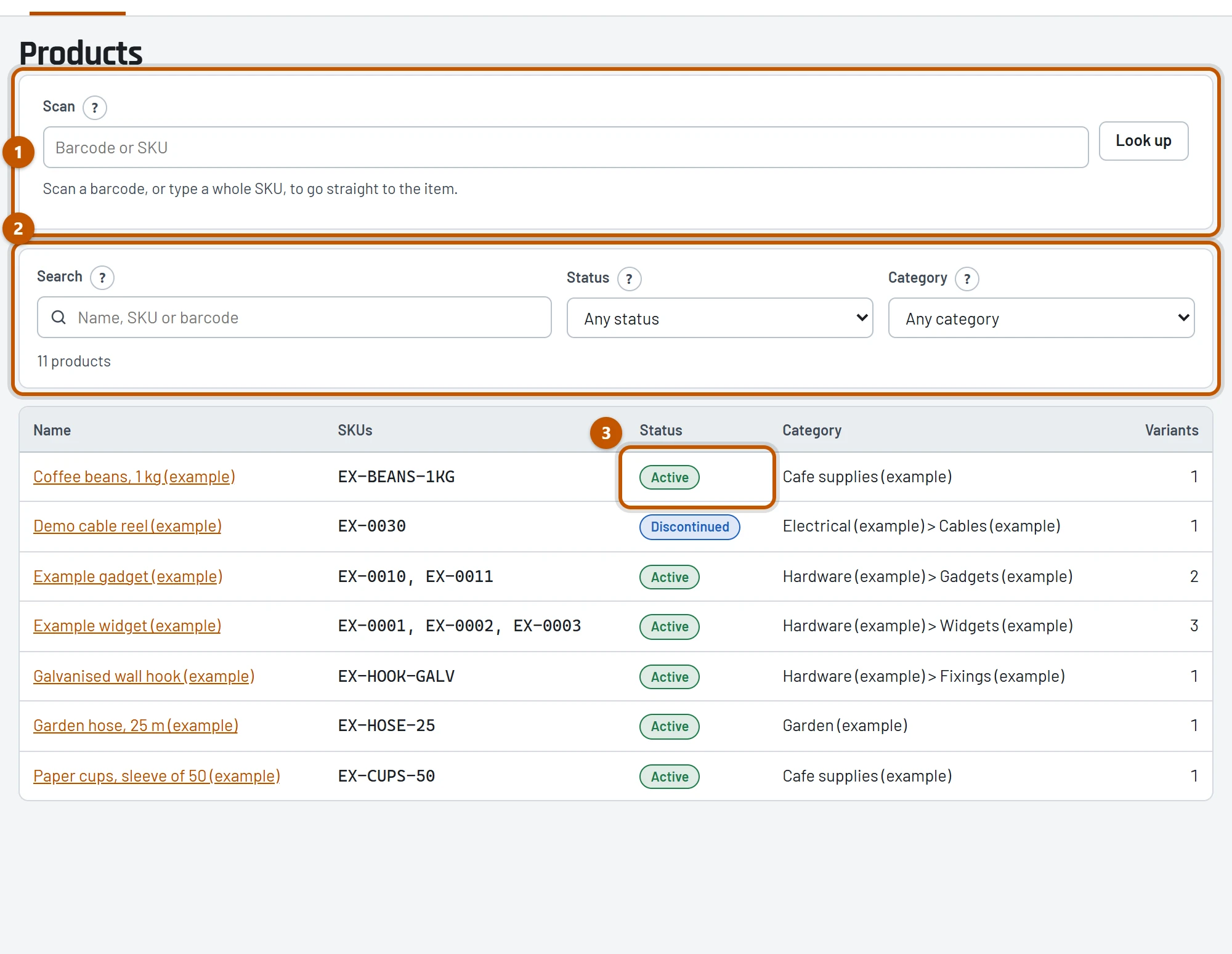
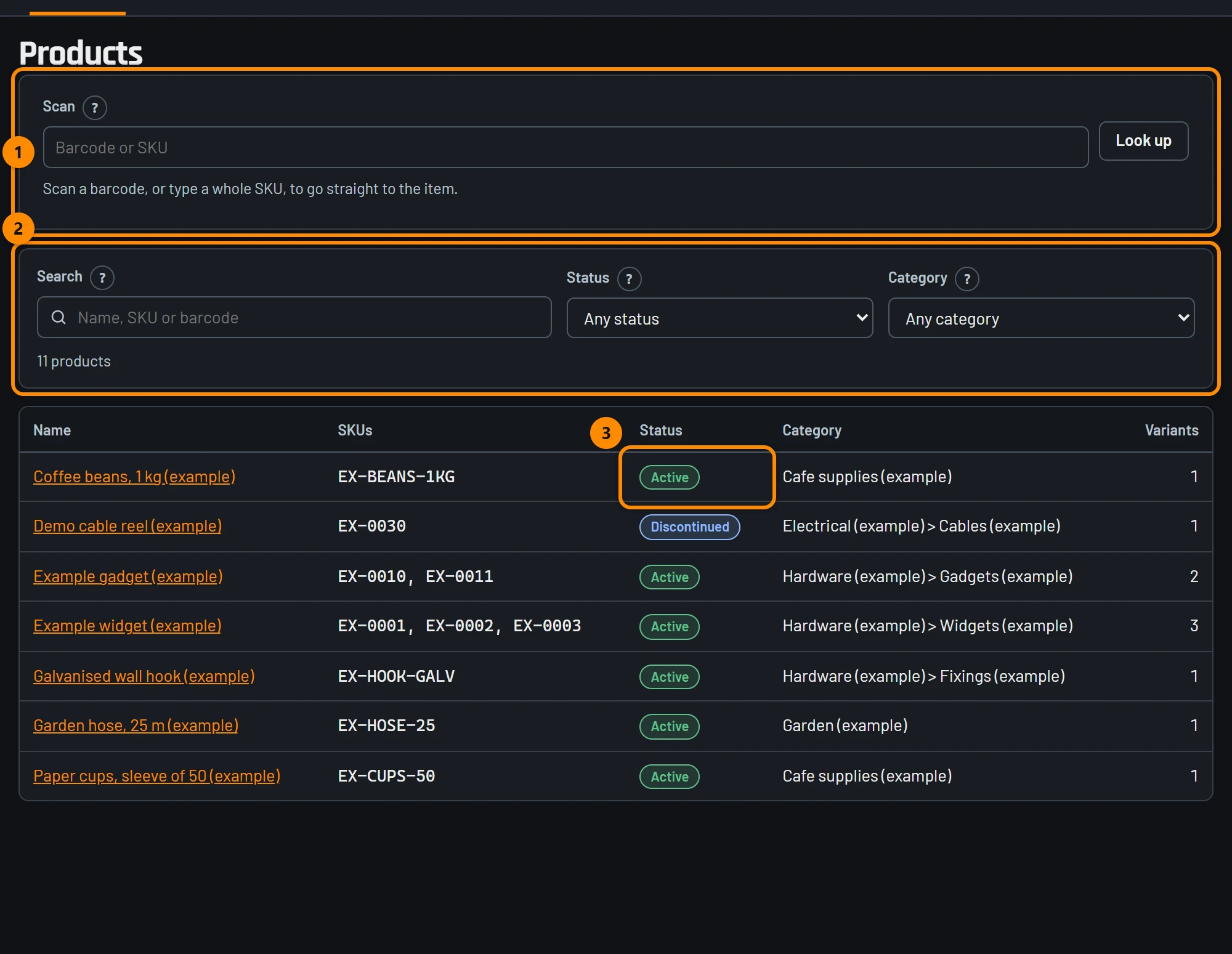
- Scan: scan a barcode, or type it.
- Search and the filters.
- Status: whether a product is active, waiting for approval or a draft.
Open Products. The list filters as you type.
- Search: part of a name or an SKU, or a whole barcode.
- Status: Draft, Waiting for approval, Active, Discontinued or Archived.
- Category: a top-level category. It includes the categories inside it.
Each row shows the product's Name, its SKUs, Status, Category and how many Variants it has. Choose anywhere on a row to open the product. A long catalogue pages: Previous, Next and Rows per page sit under the list.
To list a deeper category, open Categories and tax and choose the category's name: see Categories and tax categories.
Scan a code
In Scan, scan a barcode or type a whole SKU, then choose Look up. Products names the item, the unit the code is printed on and its status, with a link to the product.
If no product has the code, Products says so. If you may change products, Create or link this barcode opens Add product with the barcode filled in.
Add a product
Stock and Orders Managers and Products Administrators choose Add product.
- Under The product, give the Name (required). Add a Category, a Supplier reference (the maker's own code) and a Description if you have them.
- Under First variant, give the SKU (required): your own code, unique across the catalogue, such as EX-0001. Add Options, such as Red, M.
- Counted in is the smallest unit you hold: Each, Metre or Kilogram.
- Choose the Tax category, and type the Barcode on a single item if it has one.
- If you buy or sell it in packs, fill in A pack (optional): the Pack name, such as Box of 12, and how many it Holds.
- Tick what applies: Track stock (off for a service or a charge), Sold in part units (such as 2.5 metres), Backorders allowed, Has no barcode and Not purchased (made here, or a service).
- Choose Add product.
A name and an SKU are enough to start. The product opens as a Draft. Set its prices, then ask for it to be approved for sale: see A product's page.