
Signatures gets a document signed: a contract, a variation, an agreement. You send a PDF, the people who need to sign it sign it here in turn, and everyone concerned gets the signed copy.
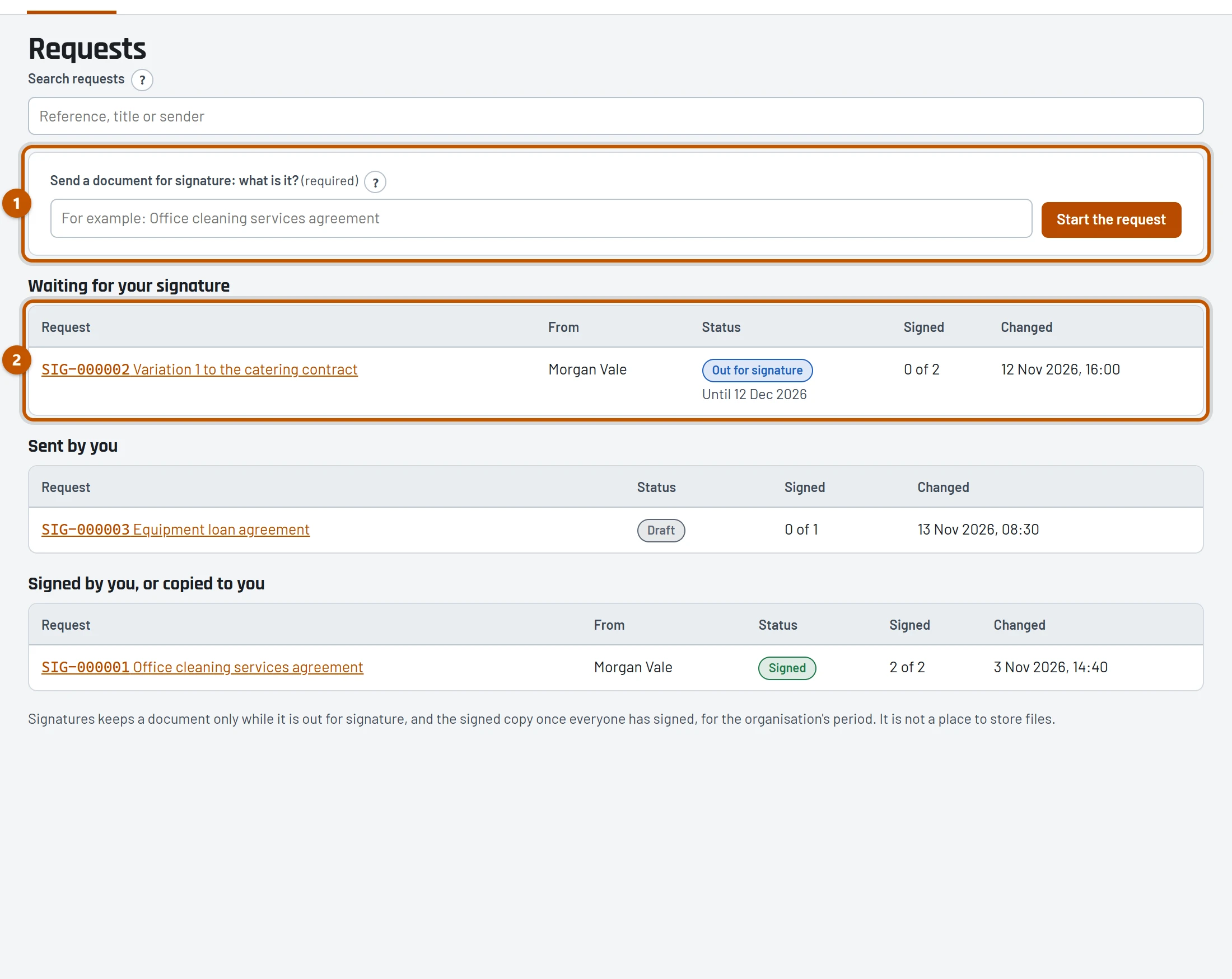
- Send a document for signature: what is it?, then Start the request (Senders).
- Waiting for your signature, then Sent by you and Signed by you, or copied to you below it.
Signatures keeps a document only while it is out for signature, and the signed copy once everyone has signed, for your organisation's period. It is not a place to store files.
The Requests page
Requests lists what concerns you:
- Waiting for your signature: open one to read and sign it.
- Sent by you: requests you sent, and how far each has got.
- Signed by you, or copied to you: finished requests, with their signed copies.
Search requests finds one by reference, title or sender.
The menu
- Requests: the above.
- Verify: check whether a PDF was signed here, and is unchanged since.
- Connections, Settings and Audit: for the people who run Signatures.
Access levels
| Access level | What it can do |
|---|---|
| Signer | Signs the documents sent to them, and keeps a copy of what they signed |
| Sender | Signs, and sends documents for signature |
| Auditor | Reads every request, its documents and the audit trail; signs and changes nothing |
| Signatures Administrator | Everything, the organisation's settings, and cancelling anyone's request |
Was this helpful?