
Settings holds your organisation's own rules for Expenses. Only an Expenses Administrator sees it. A change applies to claims from then on: a claim already sent keeps the rules it was sent under.
Approval, receipts and paying back
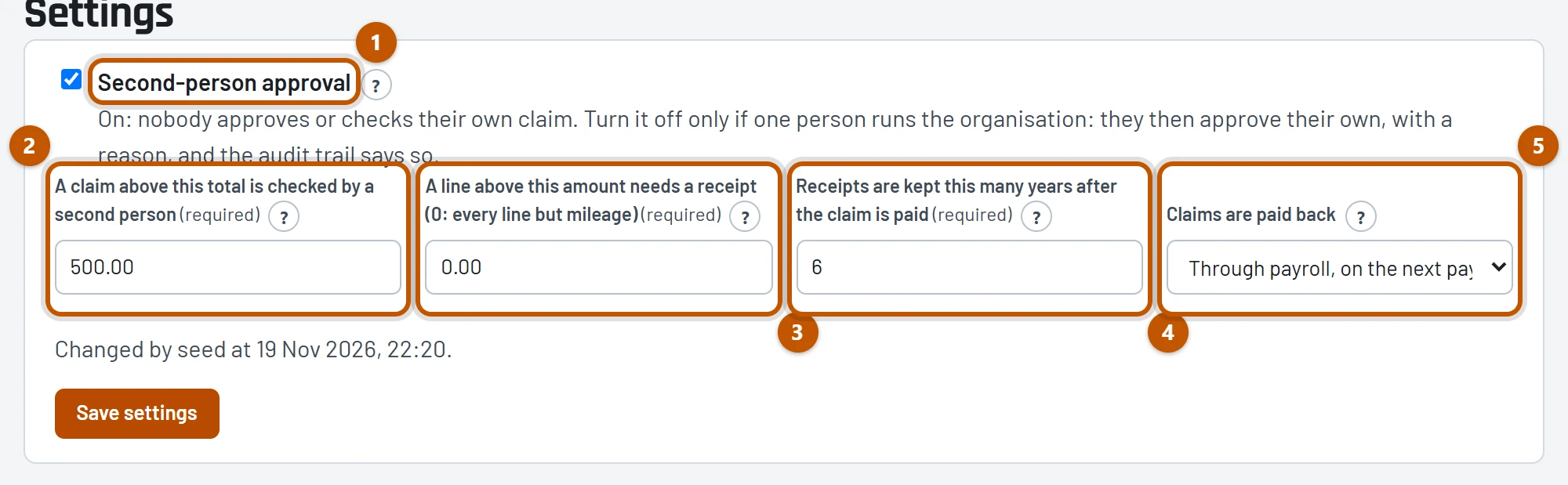
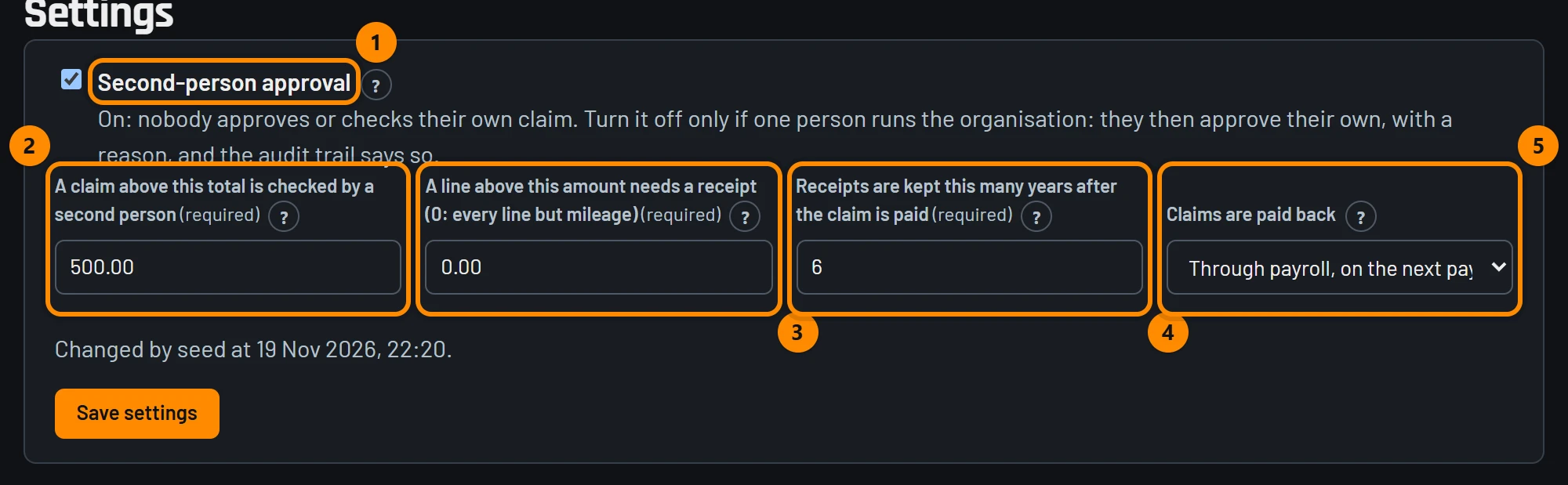
- Second-person approval: on, nobody approves or checks their own claim. Turn it off only if one person runs the organisation: they then approve their own, with a reason, and the audit trail says so.
- A claim above this total is checked by a second person: an Expenses Checker approves it after the approver.
- A line above this amount needs a receipt: 0 means every line except a journey and a card's personal item.
- Receipts are kept this many years after the claim is paid: then the picture is removed and the line says so.
- Claims are paid back through payroll, through Finance's payment runs, or recorded by hand. See How claims are paid back.
Choose Save settings.
Cost codes
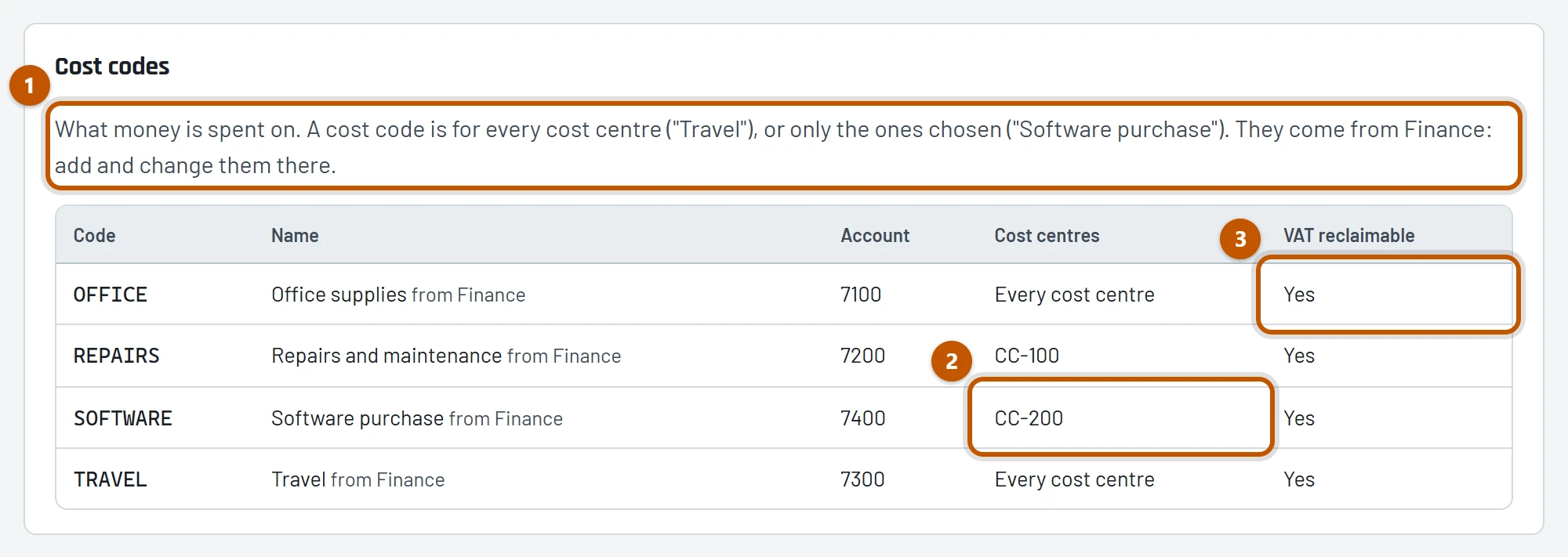
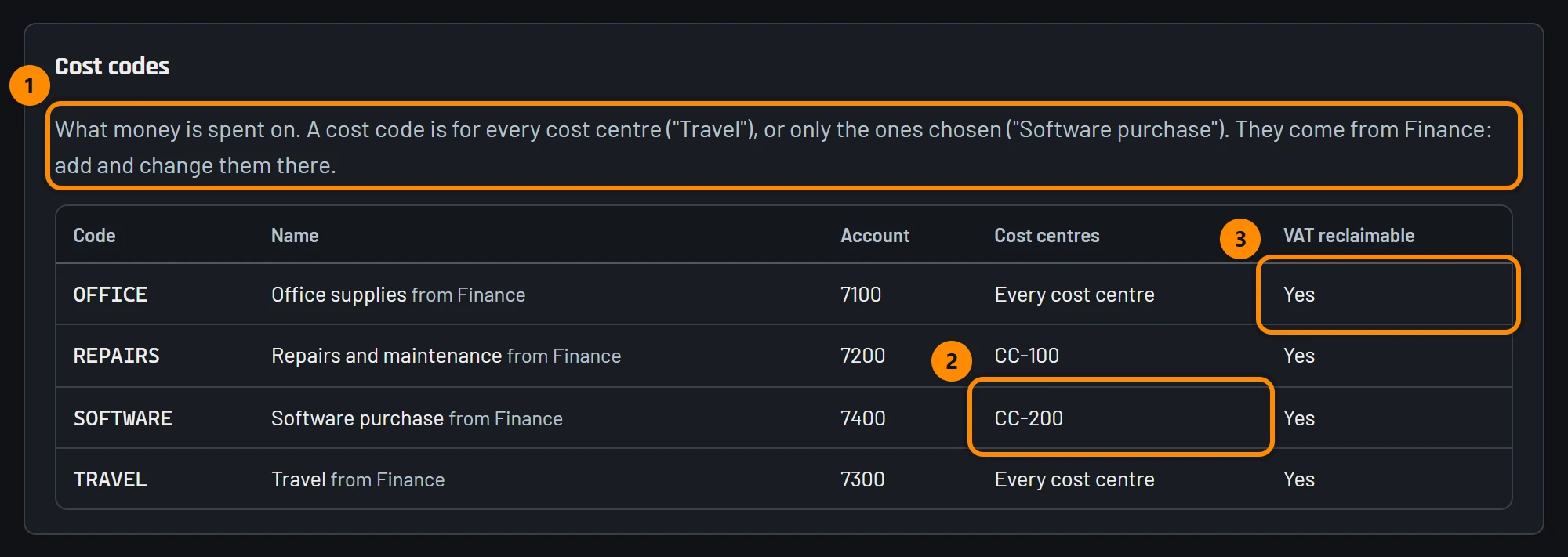
- Where they come from. Once Expenses is linked to Finance, cost centres and cost codes come from Finance: add and change them there. Without Finance, add them here: a Code and a Name each.
- Cost centres: a cost code is for every cost centre (Travel), or only the ones chosen (Software purchase). A claimant sees only the codes allowed for the cost centre they choose.
- VAT reclaimable: whether the VAT on a receipt is normally reclaimed. A cost code can also name the Finance account it posts to.
Cost centres (who the money is spent for) sit just above, and work the same way.
Limits
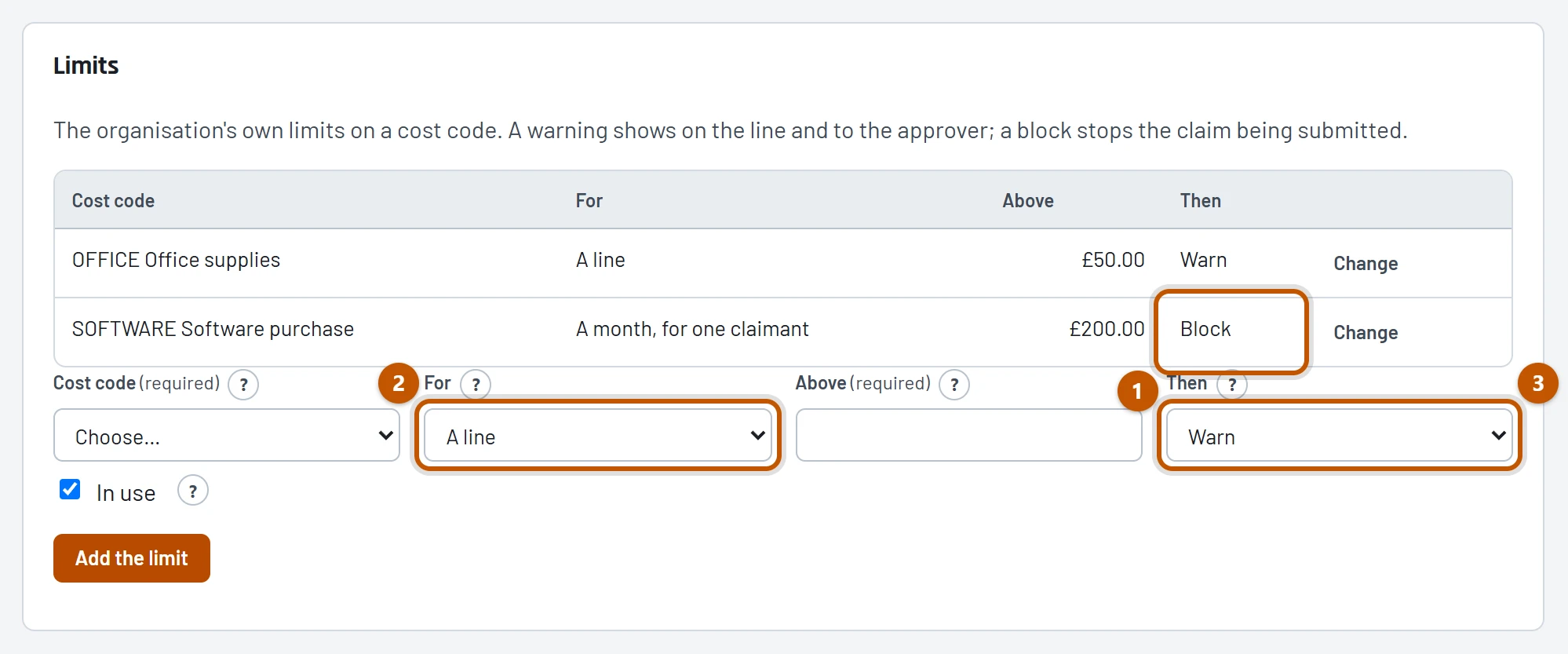
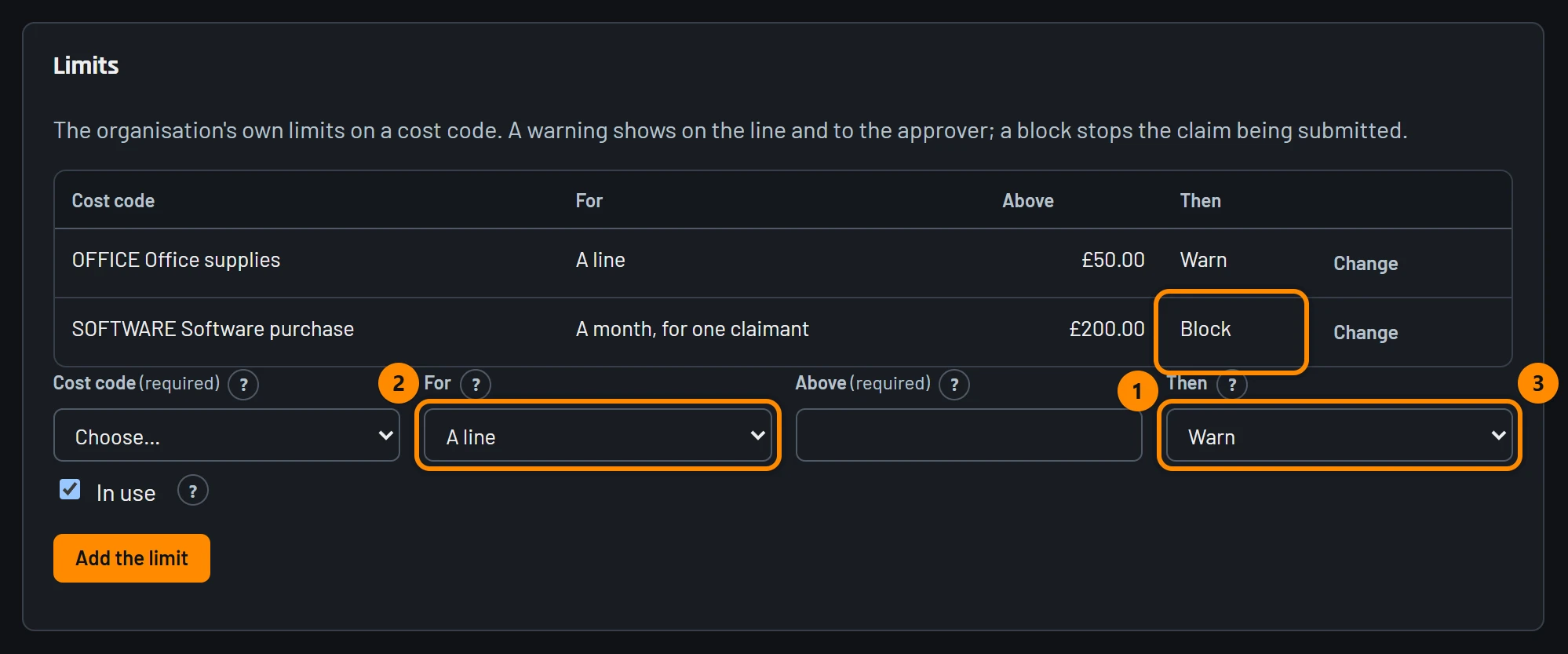
- Each limit is on one cost code.
- For: a line, a day, for one claimant, or a month, for one claimant. A day or a month counts the claimant's lines with that code in this claim and their other sent claims.
- Then: Warn shows on the line and to the approver; Block stops the claim being sent.
Untick In use to stop a limit without losing it.
Mileage rates
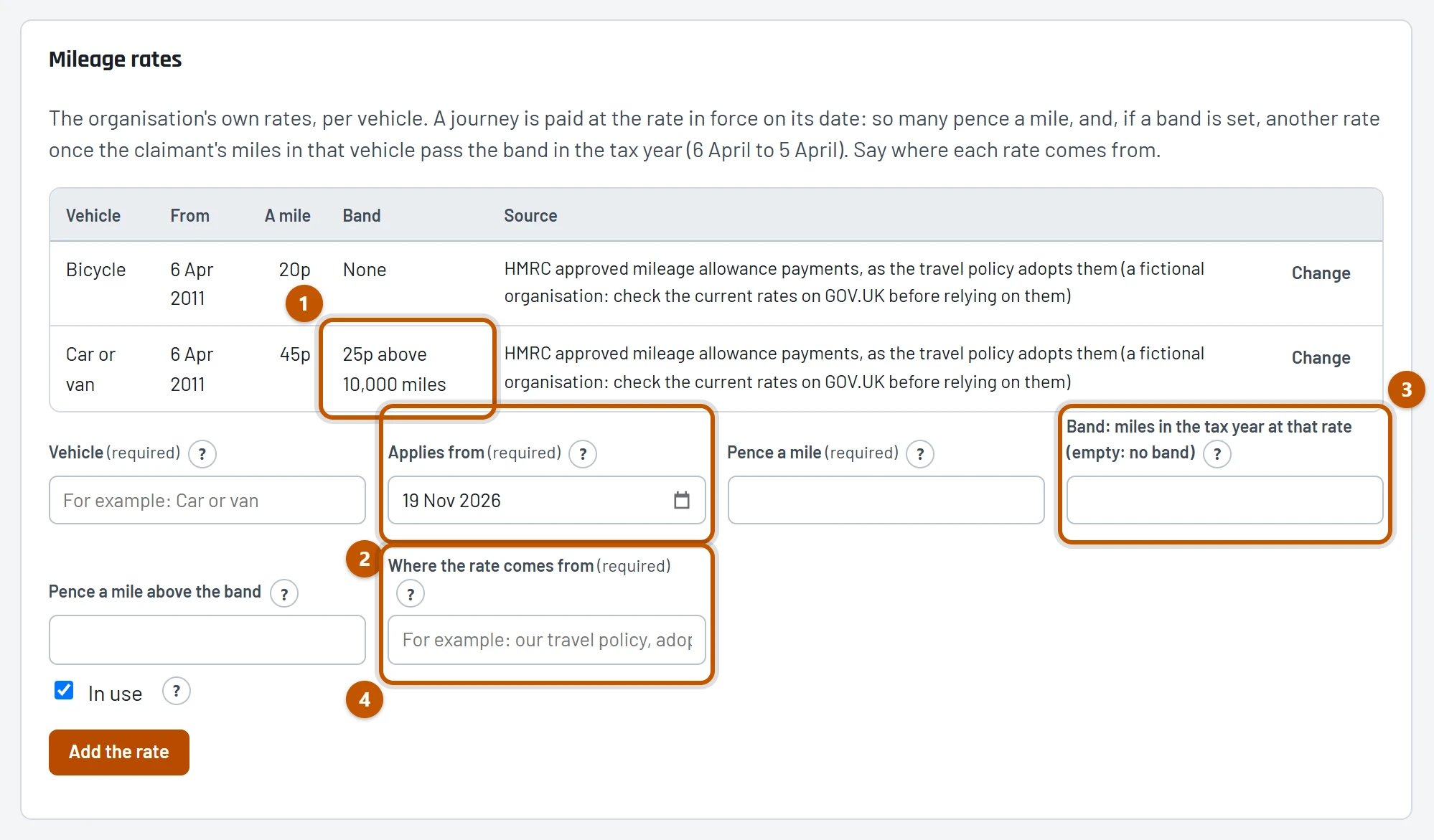
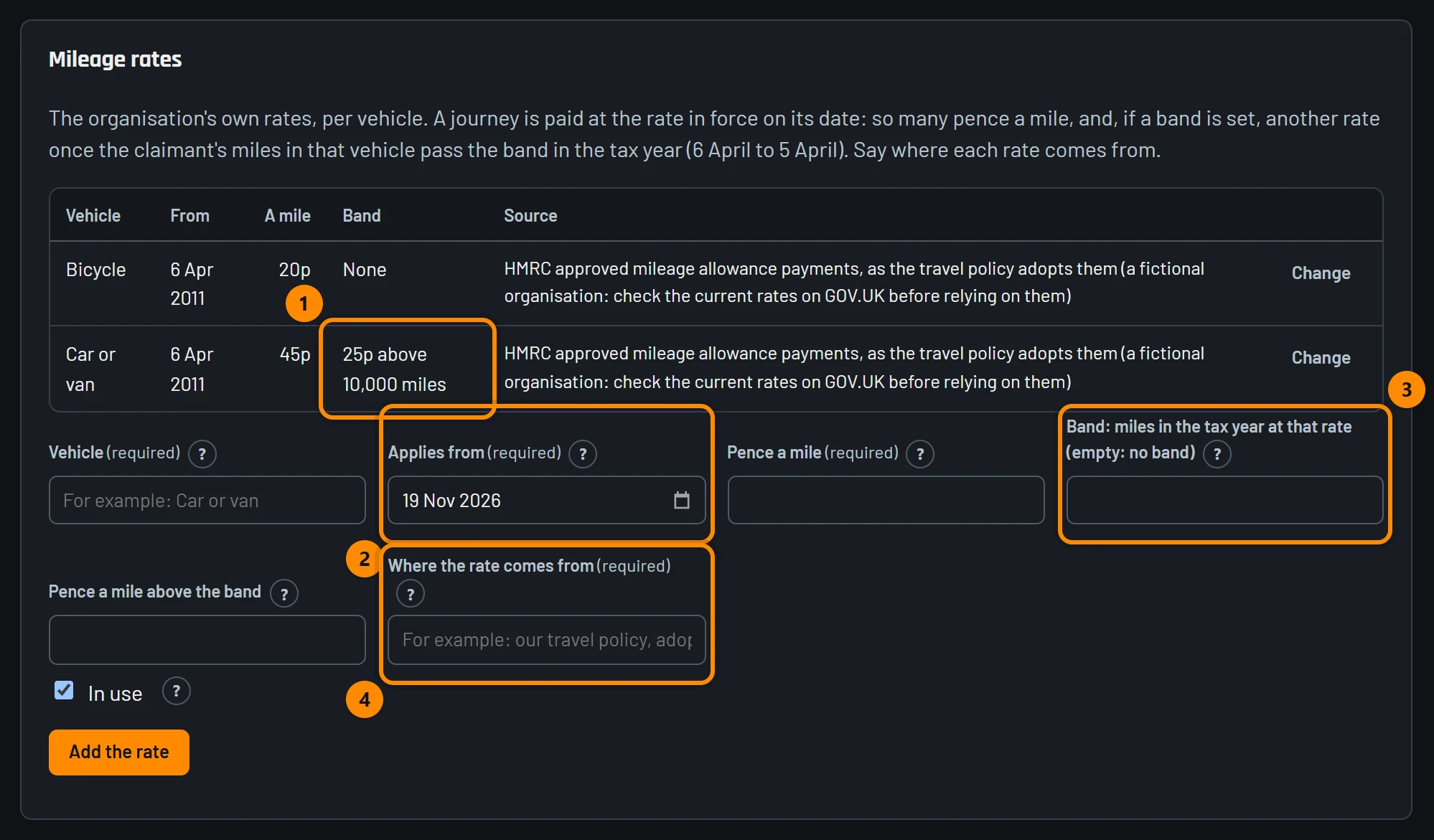
- A band, if set: another rate once the claimant's miles in that vehicle pass a figure in the tax year (6 April to 5 April).
- Applies from: a journey is paid at the rate in force on its date. To change a rate, add a new one from the date it starts, and older journeys keep the old one.
- Band: miles in the tax year at that rate: leave it empty for one rate for every mile.
- Where the rate comes from: your travel policy, for example. Claimants see it on each journey.
Nobody can claim mileage until there is a rate. None is built in: enter your own.
Who approves whose claims
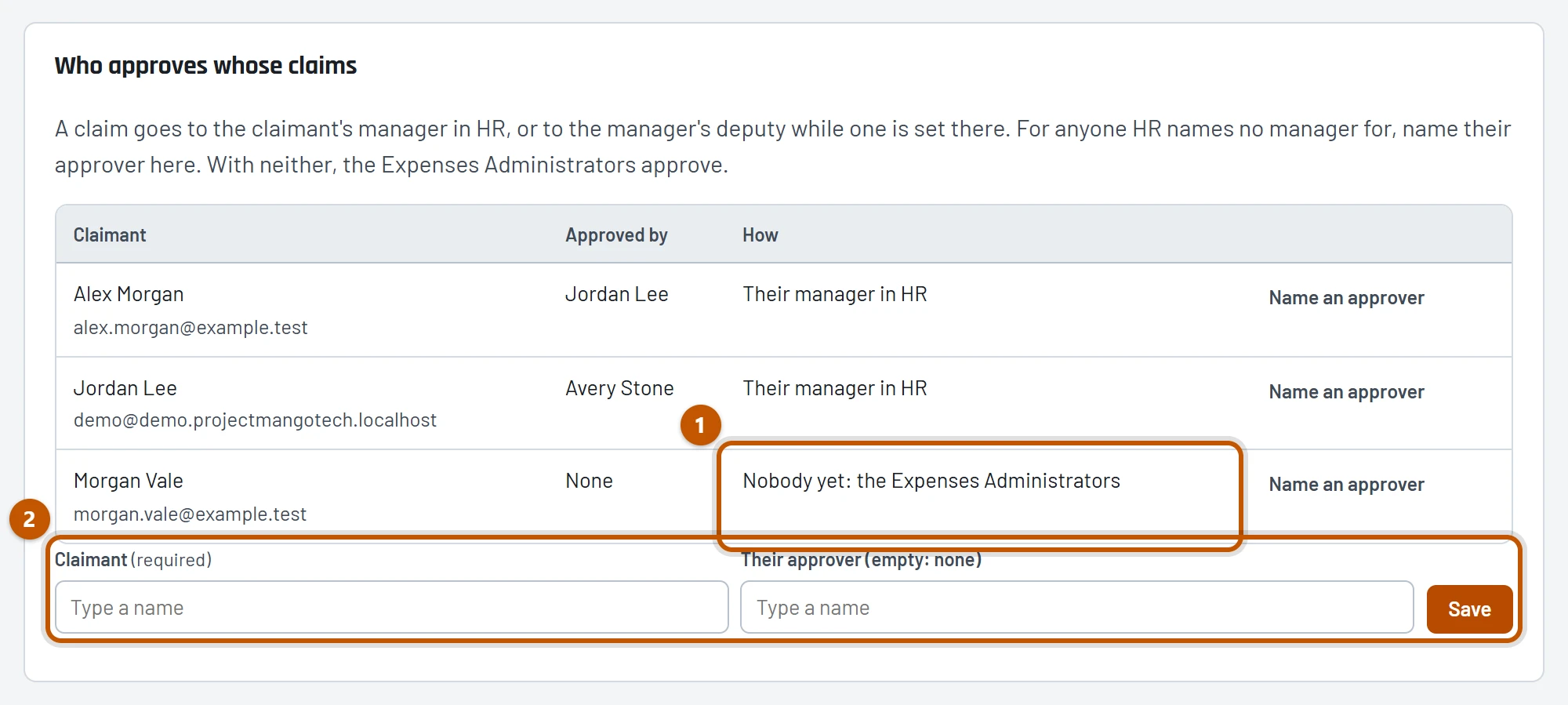
- How each claimant is approved: their manager in HR, named here, or nobody yet (so the Expenses Administrators do).
- Name an approver: choose the claimant and their approver from your colleagues, then Save. Leave the approver empty to remove one.
Good to know
- HR comes first. A manager in HR, or their deputy while one is set, approves before an approver named here.
- Who sees Settings: Expenses Administrators only. Approvers, checkers and auditors never see it.
- Every change is recorded in the audit trail, with who made it.
Was this helpful?